
Are you tired of losing your favorite custom breeds in Sims 4 Cats and Dogs? You’ve spent time creating the perfect furry friend, only to watch it disappear or start over from scratch.
What if you could save your custom pets easily and bring them back anytime you want? In this guide, you’ll discover simple and effective ways to keep your unique cats and dogs safe in your game. By the end, you’ll never have to worry about losing your beloved creations again.
Ready to protect your Sims 4 pets and make your gameplay even more enjoyable? Let’s dive in!
Creating Custom Breeds
Creating custom breeds in Sims 4 Cats & Dogs lets you personalize your pets to fit your unique style and gameplay. It’s not just about mixing looks; it’s about crafting a pet that feels alive and special in your virtual world. You can start from scratch or build on existing breeds to make something truly one-of-a-kind.
Choosing Base Breeds
Begin by selecting the base breeds you want to combine. Think about which features you like most, such as the coat pattern of a Siberian or the ears of a French Bulldog. You can mix multiple breeds to create a hybrid that stands out.
Ask yourself what kind of personality and appearance you want your pet to have. This helps narrow down the breeds you choose. For example, if you want a playful but calm dog, mixing a Labrador with a Basset Hound might be a great start.
Modifying Physical Traits
Once the base is set, tweak the physical traits to fit your vision. Adjust the size, fur length, eye color, and even tail shape. Sims 4 provides sliders and options that make these changes easy and fun.
Don’t hesitate to experiment. Changing small details like nose shape or ear position can drastically alter the pet’s look. You might discover a combination that feels fresh and exciting, something you haven’t seen before in the game.
Adjusting Personality And Traits
Physical appearance is just part of the story; personality shapes how your pet behaves. You can assign traits like playful, shy, or loyal to reflect the character you want. These traits impact how the pet interacts with Sims and the environment.
Think about what role your custom breed will play in your game. Will they be a mischievous troublemaker or a calm companion? Setting personality traits helps bring your creation to life, making your gameplay more engaging and personal.
Saving Custom Breeds
Saving custom breeds in Sims 4 Cats & Dogs is essential if you want to keep your unique creations safe and ready to use anytime. Without properly saving your breeds, you risk losing hours of detailed work. Let’s look at how you can secure your custom breeds effectively, so they’re always at your fingertips.
Using In-game Save Features
The Sims 4 offers built-in options to save your custom pets directly within the game. When you finish creating a breed, make sure to click the save button in the Create-a-Pet mode. This action stores your breed in the game’s library, where you can access it later.
Saving breeds in-game allows you to quickly load them into any household without extra steps. Have you ever lost a breed because you forgot to save it before exiting? Avoid that by saving early and often.
Exporting Breed Files
Exporting your custom breeds as files is a smart move if you want to share or transfer them. Sims 4 stores breed data in specific package files located in your game’s Mods folder. You can copy these files to another PC or back them up externally.
To export, navigate to your Sims 4 Mods directory and find the breed file, usually identifiable by the breed’s name. This approach is great for preserving your work beyond the game’s save system and allows you to upload breeds online or share with friends.
Backing Up Custom Breeds
Backing up breeds protects your creations from accidental deletion or game errors. Regularly copy your saved breed files to an external drive or cloud storage. This extra step can save you from frustrating losses, especially after long design sessions.
Have you ever lost a beloved custom breed due to a corrupted save? Backups give you peace of mind. Try setting a reminder to back up your files weekly or after major updates to your creations.
Importing And Sharing Breeds
Importing and sharing custom breeds in Sims 4 Cats & Dogs opens up a world of creative possibilities. It allows you to bring unique pets into your game or offer your own creations to the community. Understanding how to properly install and share these breeds ensures your hard work shines and others can enjoy it too.
Installing Custom Breed Mods
To add a custom breed to your game, you first need to download the mod files from trusted Sims 4 mod sites. These files usually come in .package format, which you must place into your Mods folder located in your Sims 4 directory.
Enable mods in your game settings by checking the “Enable Custom Content and Mods” option. Restart the game after adding new files to make sure the breeds load correctly. Have you ever skipped the restart step and wondered why your breed didn’t show up? That’s a common oversight.
Sharing Breeds With Others
If you’ve created a custom breed you’re proud of, sharing it is straightforward. Compress the breed files into a .zip or .rar archive to keep everything organized. Include a readme file explaining the breed’s features and any installation notes.
Post your breed on Sims 4 forums, mod websites, or social media groups dedicated to Sims mods. Engaging with the community can lead to valuable feedback and even collaborations. How do you think sharing your creations could influence your gameplay or inspire others?
Troubleshooting Import Issues
Sometimes, imported breeds don’t appear or cause errors. First, verify the mod files are placed in the correct folder and that your game version supports the mod. Outdated mods often break after game updates.
Clear your Mods folder of conflicting files and test the breed mod alone to isolate problems. Also, check if any other mods might interfere with custom breed functionality. If you still face issues, reinstalling the game or seeking advice on Sims modding forums can save hours of frustration.
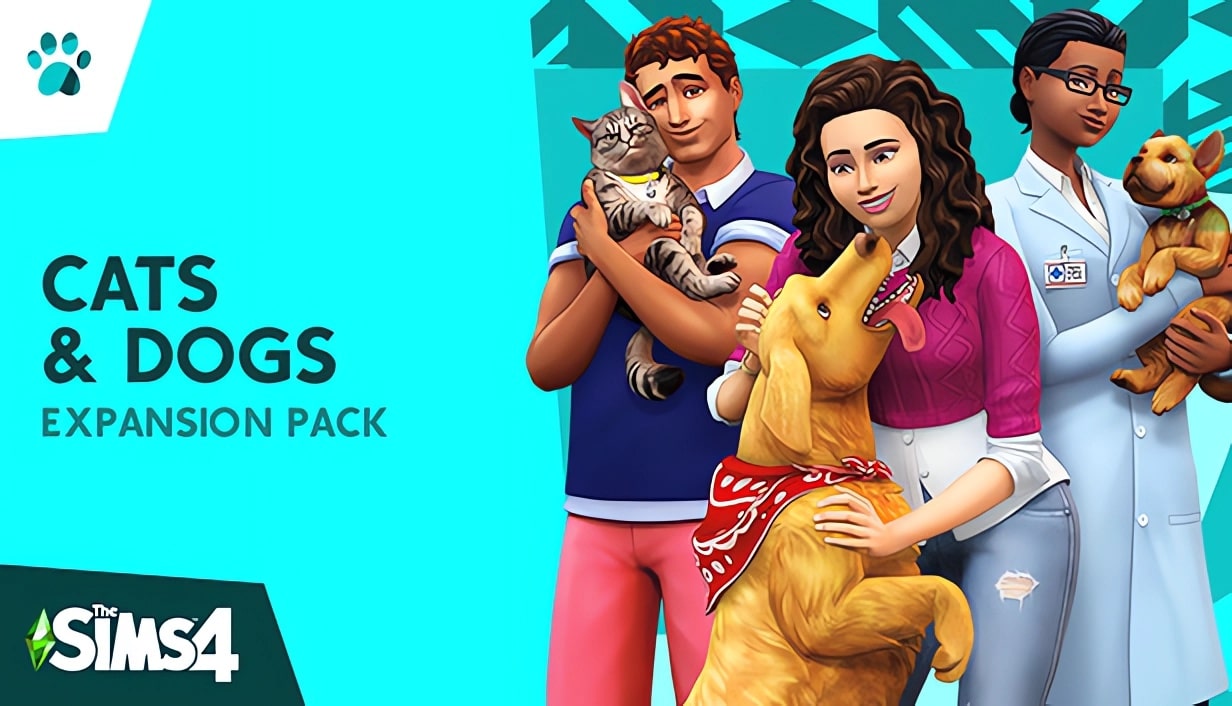
Credit: www.pjsgames.com
Enhancing Breeds With Mods
Custom breeds in Sims 4 Cats and Dogs can be saved by using mods designed for breed creation. These mods help keep your unique pets intact during gameplay and sharing. Saving breeds ensures your custom pets stay just as you designed them.
Enhancing Breeds with Mods Creating custom breeds in Sims 4 Cats & Dogs can be an exhilarating experience. But have you ever felt that your furry creations could use a little more flair or uniqueness? That’s where mods come into play. Mods can elevate your gameplay by adding new features and enhancing your pet breeds with distinct characteristics.Recommended Mods For Pets
Choosing the right mods can transform your Sims 4 experience. Some popular mods add unique fur patterns, eye colors, or even new breed types. Consider trying out mods like “Pets Plus” or “Luumia’s Pet Eyes” to start your journey. These mods provide an array of aesthetic choices to make your pets stand out.Compatibility Tips
Ensuring mods work seamlessly with your game is crucial. Always check for compatibility with the latest game updates. It’s wise to read user reviews and mod descriptions before installation. Additionally, keep a backup of your original game files, just in case something goes awry.Updating Mods Safely
Updating mods can sometimes be a tricky task. To ensure a smooth update, regularly visit the mod creator’s page for the latest versions. Delete outdated mods from your mods folder to avoid conflicts. Consider using a mod manager tool to simplify the updating process. Have you tried enhancing your breeds with mods yet? Dive into the vibrant world of modding and unleash your creativity in Sims 4!Maintaining Custom Breeds
Maintaining your custom breeds in Sims 4 Cats & Dogs ensures that all your hard work stays safe and usable for future gameplay. It’s easy to overlook the care these files need, but with proper attention, your unique cats and dogs will remain just as you designed them. Let’s look at how you can keep your custom breeds organized, protected, and up to date.
Managing Breed Files
Keep your custom breed files organized in clearly labeled folders. This makes it easier to find specific breeds and prevent accidental overwrites. Consider grouping files by breed type or creation date to streamline your workflow.
Using descriptive file names helps, especially if you have multiple versions or updates of the same breed. Avoid using special characters or spaces in file names to reduce compatibility issues with the game.
Preventing Data Corruption
Data corruption can ruin your custom breeds, sometimes beyond repair. To minimize risks, always close Sims 4 properly before modifying or adding custom files.
Another tip is to avoid editing your breed files while the game is running. This simple habit can prevent conflicts and corrupted data, which happen when the game tries to access files that are being changed.
Have you ever lost a favorite custom pet because the file got corrupted? Taking these precautions can save you from that frustration.
Regular Backups And Updates
Backing up your custom breeds regularly is your safety net. Use cloud storage or external drives to keep copies safe from computer crashes or accidental deletions.
Also, check for updates on the mods or custom content websites where you downloaded your breed files. Creators often fix bugs or add compatibility improvements after game updates.
Keeping your files updated prevents crashes and ensures your custom pets look and behave as intended. How often do you back up your Sims 4 custom content?

Credit: www.reddit.com

Credit: wickedpixxel.tumblr.com
Frequently Asked Questions
How Do I Save Custom Cat Breeds In Sims 4?
To save custom cat breeds, use the Sims 4 Create a Pet tool. Customize the breed, then click “Save Pet. ” This stores the breed for future use in your library.
Can Custom Dog Breeds Be Shared With Friends?
Yes, you can share custom dog breeds by exporting the pet file. Share the file, and friends can import it into their Sims 4 game.
Where Are Saved Custom Breeds Stored In Sims 4?
Saved custom breeds are stored in your Sims 4 library. Access them through Create a Pet mode under “My Library” or “Saved Pets” section.
How To Load A Saved Custom Breed In Sims 4?
Open Create a Pet mode, then select “My Library. ” Find your saved custom breed and click “Place in World” or “Create Pet” to use it.
Conclusion
Saving custom breeds in Sims 4 Cats and Dogs keeps your pets unique. You can enjoy your favorite designs anytime. Follow simple steps to keep your creations safe. This helps you avoid losing hours of work. Share your breeds with friends or keep them private.
Your custom pets add fun and personality to the game. Keep experimenting and saving to build your perfect pet collection. It makes playing Sims 4 more special and personal every time.
Leave a Reply