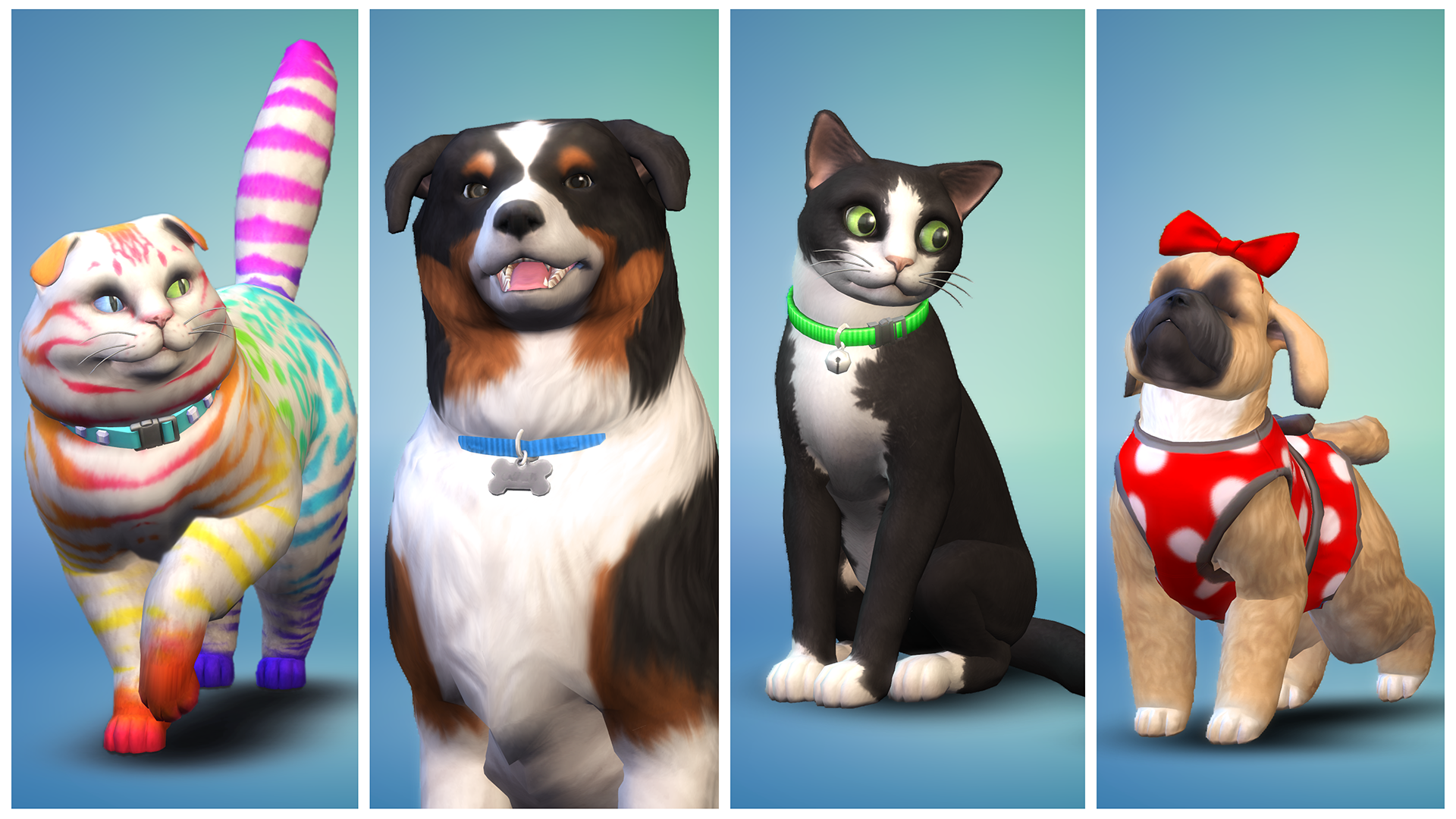
Have you ever spent hours creating the perfect custom breed for your Sims 4 cats or dogs, only to wonder if you can save it for later? You’re not alone.
Many players want to keep their unique pets without starting from scratch every time. Imagine having your favorite furry friends ready to go whenever you play, making your game more personal and fun. You’ll discover whether saving custom breeds in Sims 4 is possible and how to make the most of your pet creations.
Keep reading to unlock the secrets that will take your Sims’ pets to the next level!

Credit: www.youtube.com
Creating Custom Breeds
Creating custom breeds in Sims 4 Cats and Dogs adds a personal touch to your gameplay. It lets you design pets that fit your style and story. This process takes creativity and some basic tools. The right approach helps make unique, believable pets that stand out.
Tools Needed
- Sims 4 Create-a-Pet tool: Basic in-game editor for pets
- Modding software like Sims 4 Studio: For advanced customization
- Image editing software (e.g., Photoshop, GIMP): To create custom textures
- Reliable PC or laptop: To run editing tools smoothly
- Access to Sims 4 mods community: For tips and custom content
Step-by-step Process
- Open Sims 4 and enter Create-a-Pet mode.
- Choose a base pet to start your custom breed.
- Adjust physical features like fur pattern, color, and body shape.
- Use Sims 4 Studio to import or create new textures.
- Apply custom textures to your pet model for unique looks.
- Save your custom breed and test it in-game.
- Make tweaks to improve appearance or fix issues.
Tips For Design
- Keep breed traits realistic to enhance game immersion.
- Use clear, simple textures to avoid visual clutter.
- Test pets in different lighting for best appearance.
- Balance unique features with the game’s art style.
- Check mod compatibility to avoid crashes or bugs.
- Share your creations with the community for feedback.

Credit: www.reddit.com
Saving Custom Breeds
Saving custom breeds in Sims 4 Cats & Dogs lets players keep their unique creations safe. This process ensures you can use your personalized pets in future games without losing any details. Understanding how to save custom breeds correctly helps maintain your hard work and creativity.
In-game Saving Options
The game offers built-in ways to save your custom breeds. You can save pets directly to the library for easy access later. This keeps your breed ready to place in any household or world. Always name your breed clearly to find it quickly. Saving in the library is simple and fast, helping avoid data loss during gameplay.
File Management
Custom breeds are stored in specific game folders on your computer. Managing these files properly is key to keeping your breeds safe. Back up your files regularly by copying them to a different location. Use clear folder names to organize your custom breeds. This helps when transferring files between devices or reinstalling the game.
Common Issues
Some players face problems saving or loading custom breeds. Corrupted files can cause breeds to disappear or not load properly. Conflicts with mods or outdated game versions may also affect saving. Always keep your game updated and check for mod compatibility. If a breed won’t save, try re-saving it or restarting the game.
Sharing Custom Breeds
Sharing custom breeds in Sims 4 Cats & Dogs opens up a world of creativity and community. It allows you to show off your unique creations and enjoy others’ imaginative pets too. Whether you want to spread your custom breed or find new ones to play with, the process involves a few simple steps that anyone can follow.
Exporting Files
To share your custom breed, start by exporting the file from your game. You’ll need to locate the breed’s package file on your computer, usually found in the Mods folder. Make sure you save the file with a clear name so others can easily identify your breed.
Keep in mind that not all custom content files are exportable, so double-check your creation’s settings. Have you ever struggled to find the right file and ended up sharing the wrong one? Naming and organizing your files can save you from that frustration.
Uploading Online
Once you have your file, choose a platform to upload it. Popular sites like Mod The Sims or The Sims Resource offer easy uploading options and a large audience. Creating a detailed description and adding screenshots will help your breed stand out.
Think about what makes your breed special and highlight those features in your post. Also, be sure to mention any required mods or game versions so users avoid compatibility issues.
Downloading From Others
Downloading custom breeds from other creators is just as simple. Look for trusted websites or forums where users share their creations freely. Always scan files for viruses and read user comments to ensure the breed works well in the game.
Have you ever downloaded something that didn’t work? Checking compatibility and user feedback first can save you time and disappointment. Remember to follow any rules about crediting the original creator when you use their breeds.
Troubleshooting
Creating custom breeds in Sims 4 Cats & Dogs can be fun. But sometimes, issues arise. Troubleshooting helps you fix these problems. This guide covers common errors, compatibility concerns, and performance tips. Let’s dive into the details.
Fixing Breed Errors
Errors can occur with custom breeds. Ensure your game is updated. Outdated versions can cause glitches. Check mod compatibility. Incompatible mods may trigger errors. Consider removing or updating conflicting mods. Verify file paths. Incorrect paths can disrupt breed creation. Double-check file locations for accuracy.
Compatibility Problems
Compatibility is crucial for custom breeds. Confirm mod compatibility with game updates. Some mods may need updates. Visit mod developer sites for the latest versions. Avoid using multiple mods with similar functions. This can lead to conflicts. Prioritize essential mods to reduce issues. Keep your game environment stable.
Performance Tips
Performance affects gameplay experience. Reduce graphic settings if the game lags. High settings may strain your system. Close unnecessary applications. Running many programs can slow down performance. Allocate more RAM to the game if possible. More resources improve game efficiency. Regularly clean your system for optimal performance.
Enhancing Gameplay With Custom Breeds
Custom breeds in The Sims 4 Cats & Dogs add fresh life to your gameplay. They bring new looks and traits to pets, making your game more fun and unique. These breeds let you create stories and experiences that fit your style. Custom breeds expand the game beyond the original options, giving you endless pet possibilities.
Roleplaying Ideas
Custom breeds help create rich roleplaying stories. Imagine a rare dog breed with special skills or a cat from a faraway place. These pets can be part of unique family stories or adventures. Players can design pets that match their Sims’ lifestyles and personalities perfectly. Roleplaying feels deeper with custom breeds in the mix.
Community Creations
The Sims community offers many custom breeds for free. These creations come in various styles and sizes. Players share their work online, letting others enjoy new pets easily. Community breeds often include detailed designs and backstories. Using these breeds connects you to a wider world of Sims fans and creativity.
Combining With Mods
Custom breeds work well with other mods for more gameplay options. Mods can add new behaviors, traits, and interactions for pets. Combining breeds with mods creates a richer game experience. This mix can make pets act smarter or look even more unique. The Sims 4 becomes more dynamic with custom breeds and mods together.

Credit: www.reddit.com
Frequently Asked Questions
Can You Save Custom Breeds In Sims 4 Cats Dogs?
Yes, you can save custom breeds in Sims 4 Cats Dogs. Use the Create-A-Pet tool to design and save unique breeds. Saved breeds are accessible for future gameplay and sharing with other players.
How To Import Custom Cat And Dog Breeds In Sims 4?
To import custom breeds, download mods or create breeds in Create-A-Pet. Place custom content files in the Mods folder. Enable mods in game settings to use custom breeds.
Are Custom Breeds Compatible With Sims 4 Updates?
Most custom breeds remain compatible after updates. However, always check mod creator notes and update custom content to avoid conflicts or bugs.
Can You Share Custom Sims 4 Pet Breeds With Others?
Yes, you can share custom pet breeds by exporting them as package files. Upload to mod sites or share directly with friends to use in their games.
Conclusion
Saving custom breeds in Sims 4 Cats and Dogs is possible with simple steps. You can keep your favorite pets for future play. This adds more fun and personal touch to your game. Just follow the game’s options carefully. Enjoy creating and saving unique pet breeds.
Your Sims will love having special animals around. Keep exploring to find new ways to customize pets. It makes your game more exciting and creative every time you play.
Leave a Reply